Configuration Guide
The following guide will help you configure values.yaml file for a SuperSONIC deployment.
The full list of parameters can be found in the Configuration Reference.
You can find example values files in the SuperSONIC GitHub repository.
1. Select a Triton Inference Server Version
Official versions can be found at NVIDIA NGC.
You can also use custom-built Triton images.
Refer to the Nvidia Frameworks Support Matrix for compatibility information (CUDA versions, NVIDIA drivers, etc.).
Triton version must be specified in the triton.image parameter in the values file.
2. Configure Triton model repository
To learn about the structure of model repositories, refer to the NVIDIA Model Repository Guide.
Model repositories are specified in the
triton.argsparameter in the values file. The parameter contains the full command that launches a Triton server; you can specify one or multiple model repositories via the--model-repositoryflag.For example, the following command loads multiple CMS models hosted at CVMFS:
args:
  - |
   /opt/tritonserver/bin/tritonserver \
   --model-repository=/cvmfs/cms.cern.ch/el9_amd64_gcc12/cms/cmssw/CMSSW_14_1_0_pre7/external/el9_amd64_gcc12/data/RecoBTag/Combined/data/models/ \
   --model-repository=/cvmfs/cms.cern.ch/el9_amd64_gcc12/cms/cmssw/CMSSW_14_1_0_pre7/external/el9_amd64_gcc12/data/RecoTauTag/TrainingFiles/data/DeepTauIdSONIC/ \
   --model-repository=/cvmfs/cms.cern.ch/el9_amd64_gcc12/cms/cmssw/CMSSW_14_1_0_pre7/external/el9_amd64_gcc12/data/RecoMET/METPUSubtraction/data/models/ \
   --allow-gpu-metrics=true \
   --log-verbose=0 \
   --strict-model-config=false \
   --exit-timeout-secs=60
Make sure that the model repository paths exist. You can load models from a volume mounted to the Triton container. The following options for model repository mounting are provided via
triton.modelRepositoryparameter invalues.yaml:
Model repository options
# -- Model repository configuration
modelRepository:
  # Set to `true` to enable model repository mounting
  enabled: true

  # -- Model repository mount path (e.g /cvmfs/)
  mountPath: ""

  ## Model repository options:

  ## Option 1: mount an arbitrary PersistentVolumeClaim
  storageType: "pvc"
  pvc:
    claimName:

  ## -- OR --
  ## Option 2: mount CVMFS as PersistentVolumeClaim (CVMFS StorageClass must be installed at the cluster)
  storageType: "cvmfs-pvc"

  ## -- OR --
  ## Option 3: mount CVMFS via hostPath (CVMFS must be already mounted on the nodes)
  storageType: "cvmfs-hostPath"

  ## -- OR --
  ## Option 4: mount an NFS storage volume
  storageType: "nfs"
  nfs:
    server:
    path:
3. Select Resources for Triton Pods
You can configure CPU, memory, and GPU resources for Triton pods via the
triton.resourcesparameter in the values file:
resources:
  limits:
    nvidia.com/gpu: 1
    cpu: 2
    memory: 16G
  requests:
    nvidia.com/gpu: 1
    cpu: 2
    memory: 16G
In addition, you can use
triton.nodeSelector,triton.tolerations,triton.annotations, andtriton.affinityto steer Triton pods to specific nodes. This is particularly useful for co-locating Triton pods with Envoy proxy to reduce latency.
4. Configure Envoy Proxy
By default, Envoy proxy is enabled and configured to provide per-request load balancing between Triton inference servers.
Once the SuperSONIC chart is installed, you need an address by which clients can connect to the Envoy proxy and send inference requests.
There are two options:
Ingress (recommended): Use an Ingress to expose the Envoy proxy to the outside world. You can configure the Ingress resource via the
envoy.ingressparameters in the values file:envoy: ingress: enabled: true hostName: "<ingress_url>" ingressClassName: "<ingress_class>" annotations: {}
In this case, the client connections should be established to
<ingress_url>:443and use SSL.For information on how to configure Ingress for your cluster, please refer to cluster documentation or contact cluster administrators.
LoadBalancer Service: This option allows to expose the Envoy proxy without using Ingress, but it may not be allowed at some Kubernetes clusters. To enable this, set the following parameters in the values file:
envoy.service.type: LoadBalancerenvoy.ingress.enabled: false
The LoadBalancer service can then be mapped to an external URL, depending on the settings of a given cluster. Please contact cluster administrators for more information.
In this case, the client connections should be established to
<load_balancer_url>:8001and NOT use SSL.
Some Envoy Proxy parameters, such as load balancing policy, rate limiting, and authentication,
can be cofigured directly in the values.yaml file as described in sections below.
Alternatively, you can provide an external Envoy configuration file to override the default configuration completely (the configuration file must be supplied as a ConfigMap):
envoy:
  external_config:
    load_from_configmap: true
    configmap_name: external-envoy-config
    configmap_key: envoy.yaml
scaleFromZero and the prometheus-based rate limiter work with an external
configuration only if it carries the clusters, Lua filter and routes that the generated
configuration would have added (see templates/envoy/configmaps.yaml); the chart does
not check for them.
5. (Optional) Configure Rate Limiting in Envoy Proxy
There are two types of rate limiting available in Envoy Proxy: listener-level, and prometheus-based.
Listener-level rate limiting allows to explicitly limit the number of client connections established to the Envoy proxy endpoint. It can be useful to prevent overloading the proxy with too many simultaneous client connections.
The listener-level rate limiting is implemented via “token bucket” algorithm. Each new connection consumes a token from the bucket, and the bucket is refilled at a constant rate.
Example configuration in
values.yaml:envoy: enabled: true rate_limiter: listener_level: # -- Enable rate limiter enabled: false # -- Maximum number of simultaneous connections to the Envoy Proxy. max_tokens: 5 # -- ``tokens_per_fill`` tokens are added to the "bucket" every ``fill_interval``, allowing new connections to be established. tokens_per_fill: 1 # -- For example, adding a new token every 12 seconds allows 5 new connections every minute. fill_interval: 12s
Prometheus-based rate limiting allows an additional layer of rate limiting based on a metric queried from a Prometheus server. This can be useful to dynamically control server load and stop accepting new connections when GPUs are saturated.
This rate limiter can be enabled via the
envoy.rate_limiter.prometheus_basedparameter in the values file.At the moment, this functionality is configured to only reject
RepositoryIndexrequests to Triton servers, and it ignores any other requests in order not to slow down the inferences.The rate limiter evaluates the autoscaler’s scaling metric per healthy Triton replica and rejects
RepositoryIndexrequests aboveserverAdmissionThreshold(see step 8).
6. (Optional) Configure Authentication in Envoy Proxy
At the moment, the only supported authentication method is JWT. Example configuration for IceCube:
envoy:
  auth:
    enabled: true
    jwt_issuer: https://keycloak.icecube.wisc.edu/auth/realms/IceCube
    jwt_remote_jwks_uri: https://keycloak.icecube.wisc.edu/auth/realms/IceCube/protocol/openid-connect/certs
    audiences: [icecube]
    url: keycloak.icecube.wisc.edu
    port: 443
7. Deploy a Prometheus Server or Connect to an Existing One
Prometheus is needed to scrape metrics for monitoring, as well as for the rate limiter and autoscaler.
Option 1 (recommended): Deploy a new Prometheus server.
This will allow to configure a shorter scraping interval, resulting in a more responsive rate limiter and autoscaler. Prometheus server typically uses only a small amount of resources and does not require special permissions for installation.
This option installs Prometheus as a subchart, the default values for it are set to reasonable values. You can further customize the Prometheus installation by passing parameters from official Prometheus values.yaml file under the
prometheussection of the SuperSONIC values file:prometheus: enabled: true server: ingress: enabled: true ingressClassName: "<ingress_class>" hosts: - "<prometheus_url>" tls: - hosts: - "<prometheus_url>"
The parameters you will most likely need to configure in your values file are related to Ingress for web access to Prometheus UI.
Warning
This option requires permissions to list pods in the installation namespace. Permission validation is performed automatically: if you don’t have the necessary permissions, an error message will be printed when running
helm installcommand.Option 2: Connect to an existing Prometheus server.
If you don’t have enough permissions to install a new Prometheus server, you can connect to an existing one. If
prometheus.external.enabledis set totrue, all parameters in theprometheussection, except the ones underprometheus.external, are ignored.prometheus: external: enabled: true scheme: "<https or http>" url: "<prometheus_url>" port: <prometheus_port>
8. (Optional) Configure Metrics for Scaling and Rate Limiting
The autoscaler and the Prometheus-based rate limiter share one Prometheus query,
set by serverLoadMetric and rendered in templates/_helpers/_scaling-metric.tpl.
The default metric
By default, SuperSONIC estimates how many Triton replicas the current in-flight work needs:
R_needed = L_envoy / max(L_service / R_healthy, 1)
The rate() of a cumulative time counter is the mean number of requests inside
that stage (Little’s law):
L_envoy— requests in flight between Envoy and Triton:sum(rate(envoy_cluster_upstream_rq_time_sum{...}[30s])) / 1e3.L_service— requests being executed:(sum(rate(nv_inference_request_duration_us{...}[30s])) - sum(rate(nv_inference_queue_duration_us{...}[30s]))) / 1e6.R_healthy— Triton endpoints Envoy routes to:max(envoy_cluster_membership_healthy{...}).
Models are weighted by the time they consume, so the metric has no model-specific
constants. The clamp_min floors encode that a healthy replica can always
execute one request, which lets an idle fleet scale down, and keep the division
finite. The rate limiter uses the metric per healthy replica: 1 means nothing
queues, 2 means requests wait as long as they are served.
Requirements and limitations
Envoy must be enabled with the Triton cluster named
triton_grpc_service, and Prometheus must scrape Envoy and Triton with areleaselabel (the chart defaults do both).All inference traffic must enter through Envoy; requests sent directly to the Triton service are not counted and scale the fleet down.
Ensemble and BLS models are reported under the parent and under each composing model, so the metric under-reads overload for them; use a custom
serverLoadMetricthat excludes the parent models.Failed requests count as load. Envoy’s default circuit breaker caps in-flight requests at 1024 per Envoy replica, invisibly to the metric.
An empty query result (lost scrape target, missing
releaselabel) reads as zero load. An unreachable Prometheus keeps the current replica count and makes the rate limiter rejectRepositoryIndexunlessscaleFromZerois enabled.
Thresholds
serverLoadThreshold(default1.5) — KEDA scales toceil(metric / threshold).1.5keeps queueing at about half the service time per replica;2tolerates “waiting ≈ serving”. The unloaded floor is ~1.2–1.3, so values below that over-provision.serverAdmissionThreshold(default3) — Envoy rejects newRepositoryIndexrequests when the per-replica metric exceeds it. Keep it aboveserverLoadThresholdso admission is not gated at the operating point.serverLoadRateInterval(default30s) — therate()window; keep it at or above 4x the Prometheus scrape interval (1mfor a 15s scrape).
Fractional thresholds must come from a values file or --set-json; --set
passes decimals as strings. Envoy reads the query and the admission threshold at
startup, so restart its pods after changing them.
Upgrading from the queue-latency metric: remove a leftover
serverLoadThreshold: 100; with the default metric it pins Triton at
keda.minReplicaCount (helm install warns). To keep the old behaviour, keep
the threshold, set serverAdmissionThreshold to the same value, and set
serverLoadMetric to the old query:
sum by (release) (rate(nv_inference_queue_duration_us{release="<release>"}[30s]))
/
sum by (release) ((rate(nv_inference_exec_count{release="<release>"}[30s]) * 1000) + 0.001)
Custom metrics
A custom serverLoadMetric is used verbatim by both consumers: KEDA compares
it with serverLoadThreshold (keda.metricType then defaults to Value,
i.e. per replica) and the rate limiter with serverAdmissionThreshold, so set
both in the metric’s units.
9. (Optional) Deploy Grafana Dashboard
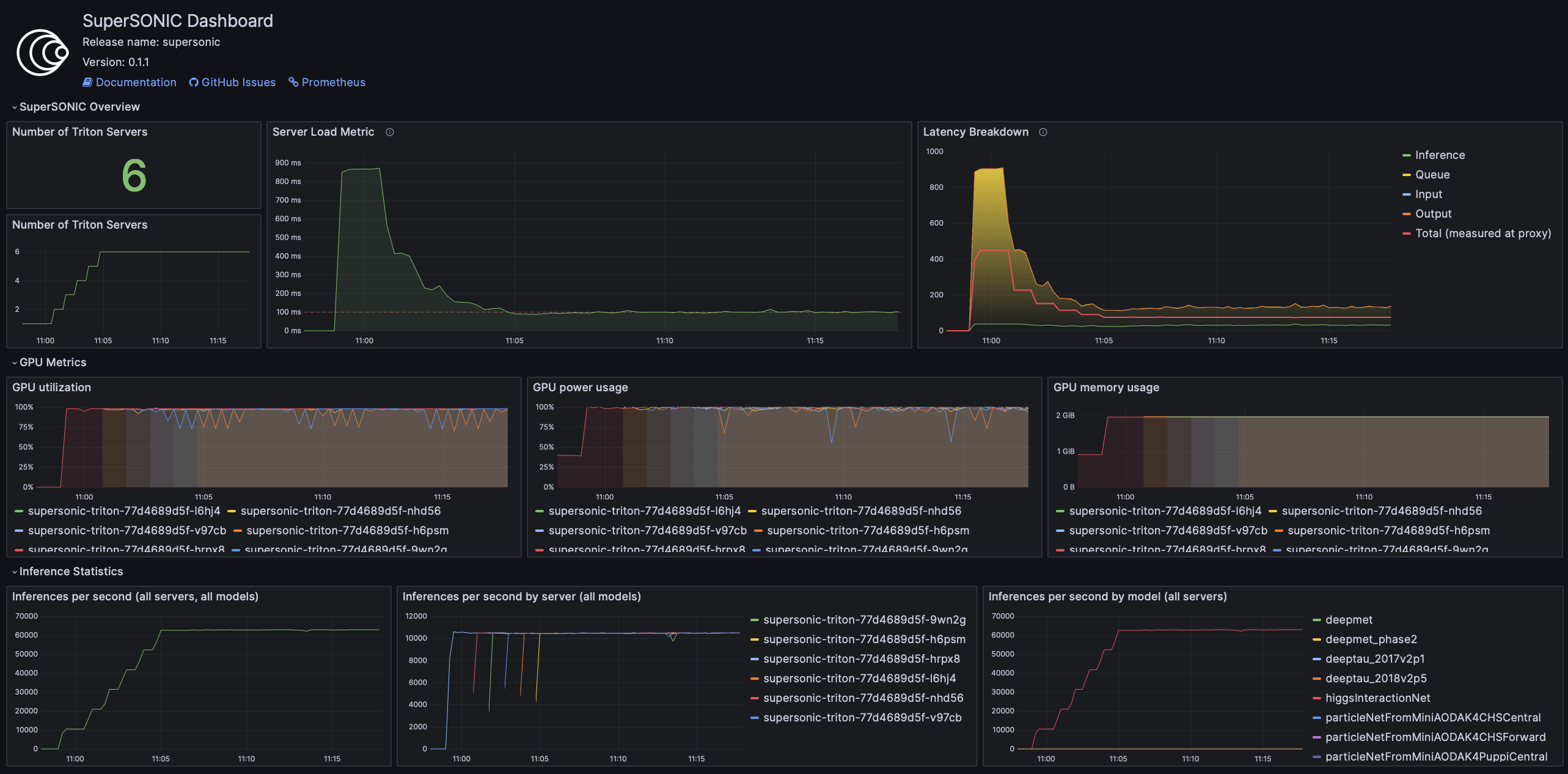
Grafana is used to visualize metrics collected by Prometheus. We provide a pre-configured Grafana dashboard which includes many useful metrics, including latency breakdown, GPU utilization, and more.
If you have a Grafana instance already installed, you can deploy SuperSONIC dashboars by copying one of the JSON files from the SuperSONIC repository.
If you don’t have a Grafana instance already installed, you can deploy one as a subchart of SuperSONIC, in which case the dashboard will be automatically deployed.
You can further customize the Grafana installation by passing parameters from
official Grafana values.yaml file
under the grafana section of the SuperSONIC values file:
grafana:
  enabled: true
  ingress:
    enabled: true
    ingressClassName: "<ingress_class>"
    hosts:
       - "<grafana_url>"
    tls:
      - hosts:
          - "<grafana_url>"
The values you will most likely need to configure in your values file are related to Grafana Ingress for web access, and datasources to connect to Prometheus,
10. Enable KEDA Autoscaler
Autoscaling is implemented via KEDA (Kubernetes Event-Driven Autoscaler) and
can be enabled via the keda.enabled parameter in the values file.
Warning
Deploying KEDA autoscaler requires KEDA CustomResourceDefinitions to be installed in the cluster. Please contact cluster administrators if this step of installation fails.
keda.minReplicaCount and keda.maxReplicaCount bound the number of Triton servers.
keda.pollingInterval is how often KEDA checks whether the trigger is active (scaling to
and from zero); scaling between one and maxReplicaCount follows the HPA sync period
(15 seconds). keda.cooldownPeriod is how long the metric must stay at or below
keda.activationThreshold before KEDA scales to zero; with the default
activationThreshold of 0 any traffic through Envoy keeps the fleet alive, and about 0.1
ignores probe traffic.
keda.scaleUp and keda.scaleDown set the HPA behavior: at most stepsize replicas
per periodSeconds, after a stabilizationWindowSeconds look-back. The defaults react
within one HPA evaluation and scale down after 90 seconds of low load:
keda:
  enabled: true

  minReplicaCount: 1
  maxReplicaCount: 10

  pollingInterval: 10
  cooldownPeriod: 300

  scaleUp:
    stabilizationWindowSeconds: 0
    periodSeconds: 15
    stepsize: 2
  scaleDown:
    stabilizationWindowSeconds: 90
    periodSeconds: 15
    stepsize: 2
Scaling down removes pods that may hold requests; Triton finishes them within
--exit-timeout-secs (60 seconds by default), which must fit inside the pod’s 60-second
termination grace period. Inference requests that reach a terminating pod fail with
UNAVAILABLE and are not retried.
To keep zero Triton replicas when idle, set keda.minReplicaCount to 0 and enable
scaleFromZero. Envoy stays running. On a RepositoryIndex request (the first RPC
used by CMS SONIC clients), SuperSONIC scales Triton to max(1, keda.minReplicaCount)
replicas and returns the index only after Envoy has a healthy Triton upstream. KEDA then
scales up to maxReplicaCount using the Prometheus load metric. After
scaleFromZero.holdMinReplicasSeconds with no further RepositoryIndex requests,
the ScaledObject minimum returns to keda.minReplicaCount, and KEDA can scale back to zero.
envoy:
  enabled: true

keda:
  enabled: true
  minReplicaCount: 0
  maxReplicaCount: 10

scaleFromZero:
  enabled: true
  readyTimeoutSeconds: 300
  holdMinReplicasSeconds: 300
Warning
The client deadline for RepositoryIndex must cover Triton startup. If no healthy
upstream is available within scaleFromZero.readyTimeoutSeconds, the index request
is rejected.
triton.replicas is unused when scaleFromZero is enabled; KEDA owns the replica
count. Helm upgrades keep the live ScaledObject minReplicaCount so they do not
interrupt an active hold. The hold deadline is stored as an annotation on the
ScaledObject, so the admission sidecars of multiple Envoy replicas share one hold
and none can release a peer’s active hold. scaleFromZero requires keda.enabled and
envoy.enabled.
Do not set keda.zeroIdleReplicas: true together with minReplicaCount: 0.
zeroIdleReplicas sets KEDA idleReplicaCount to 0 and cannot scale from 0 back to 1
when the load metric is scraped from Triton. Use scaleFromZero for that.
An example is values/values-geddes-cms.yaml.
11. (Optional) Configure Metrics Collector for Running perf_analyzer
To collect Prometheus metrics when using perf_analyzer for testing,
a Metrics Collector can be deployed to format Prometheus metrics properly.
The Metrics Collector is installed as a subchart with most of the default
values pre-configured. To enable the Metrics Collector, set the
metricsCollector.enabled parameter to true in your values file
and configure ingress settings if needed as shown below:
metricsCollector:
  enabled: true
  ingress:
    enabled: true
    hostName: "<metrics_collector_url>"
    ingressClassName: "<ingress_class>"
    annotations: {}
Running with perf_analyzer is then done with:
perf_analyzer -m <model_name> -u <envoy_engress> -i grpc \
    --collect-metrics --metrics-url <metrics_collector_url>/metrics \
    --verbose-csv -f <out_csv_file_name>.csv
If ingress is not desired, port-forward the metrics collector service and call
--metrics-url localhost:8003/metrics to access the metrics.